How to Autofill Government Exam Application Forms Safely
If you apply for government jobs, you know the routine: the same 30–40 fields on every portal — your name exactly as in the 10th certificate, father's and mother's names, date of birth, category, address, district, PIN, qualification, year of passing. Typing all of it again for every exam is slow, and a typo in a name or date can cause trouble later at document verification.
A form filler helps — if it is used carefully. This guide shows how to prepare your details once, fill forms with one click using the free FillKaro extension, and what you should always check and enter yourself.
Prepare your details once
- Name, father's and mother's names exactly as on your 10th/matriculation certificate (spelling and spacing matter).
- Date of birth in DD/MM/YYYY.
- Category (GEN/OBC/SC/ST/EWS), PwBD status, marital status, nationality.
- Full correspondence address, district, state and PIN.
- Highest qualification, board/university and year of passing.
Step by step
- Install FillKaro. Add the free extension from the Chrome Web Store on a computer. No account is needed.
- Create your profile. Open FillKaro Options and enter the details above. They are saved only in your browser.
- Open the application form. Log in to the portal yourself and open the form page.
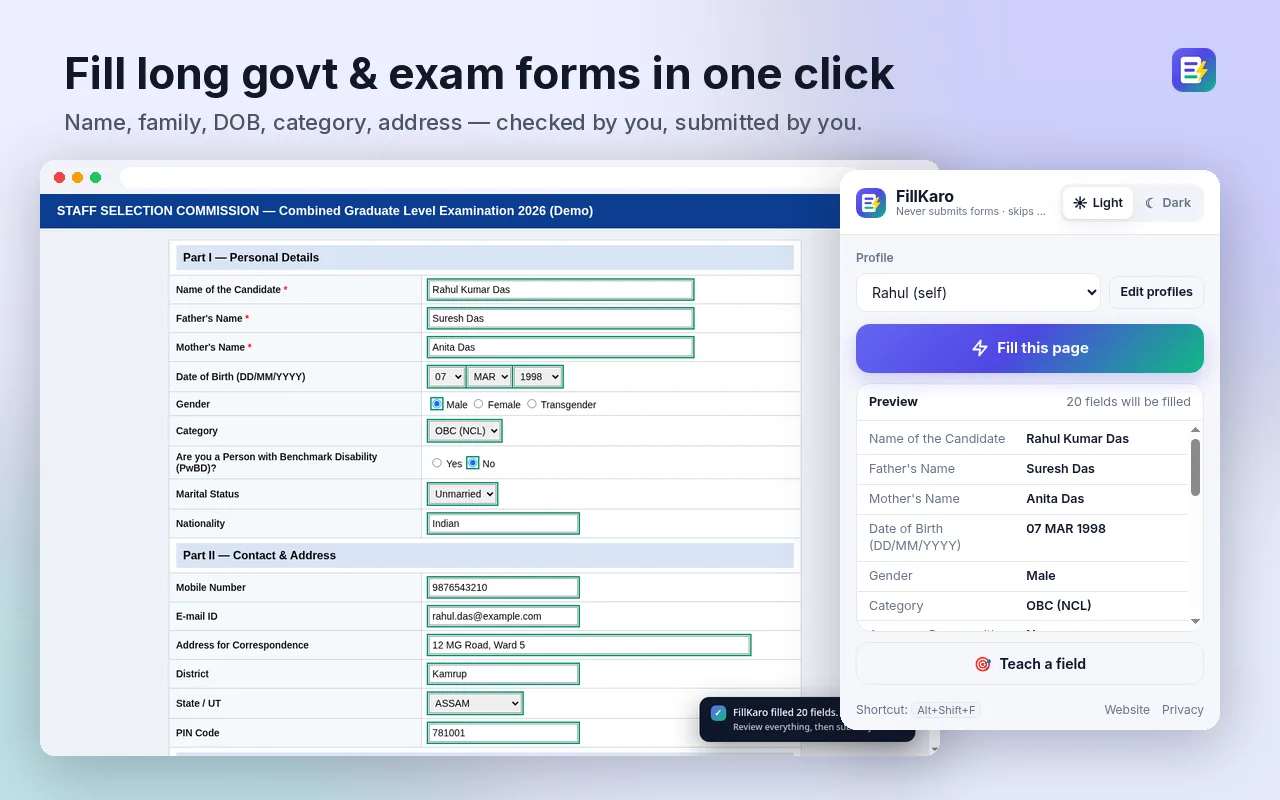
- Preview and fill. Click the FillKaro icon. The popup shows which fields it found and what it will fill. Press Fill (or Alt+Shift+F).
- Review every field. Filled fields are outlined. Check names, DOB, category and address against your certificates. Fix anything that differs.
- Do the rest yourself. Enter OTP and captcha, tick the declaration, upload photo/signature, and press Submit yourself.
What FillKaro never does
- It never presses Submit, Next or Pay.
- It never fills passwords, OTP, captcha or card details.
- It does not tick declaration boxes — that is your confirmation.
- It fills Aadhaar or other ID numbers only if you turn that on in Options, and shows them masked.
Privacy
FillKaro has no servers and makes no network requests; your profile stays in chrome.storage.local. Read the privacy policy. FillKaro is not affiliated with SSC, any railway recruitment board or any government body.